
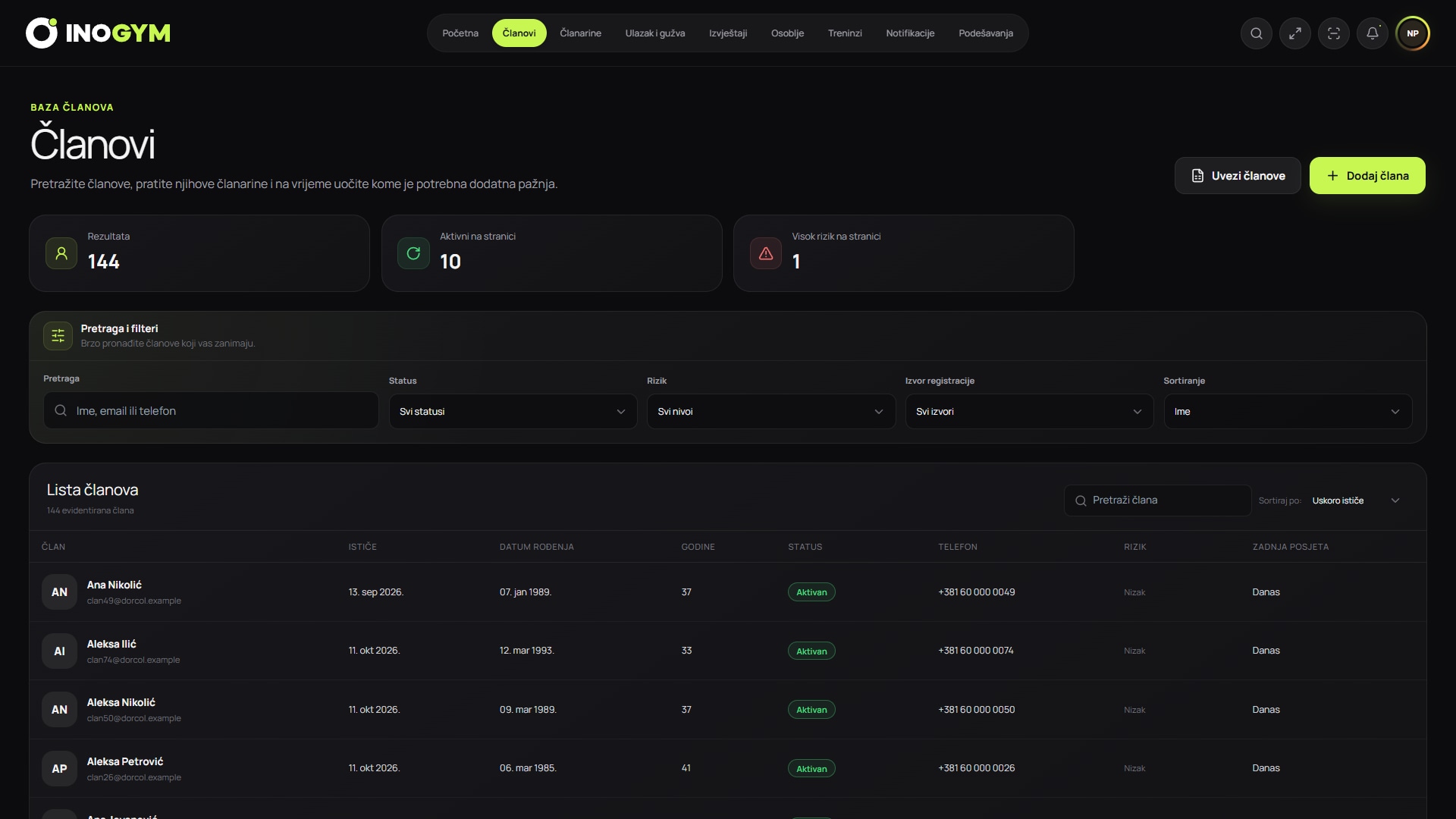
Screenshots show the Serbian version of the app.
1. Save your spreadsheet and decide what to transfer
Copy your existing records before making changes. Agree who prepares data and when new changes start being recorded in InoGym. This prevents two shifts editing the same member in different spreadsheets at once.
The official InoGym template transfers basic member details and can add a membership through an active plan and start date. Full payment history, visits and documents are not part of this Excel import. Keep old records for information you do not transfer, according to your gym's rules.
2. Prepare the three required details
Prepare a full name, valid email and date of birth for each member. On the ‘Članovi za uvoz’ sheet, one person occupies one row. If you are new to Excel, follow our separate guide to entering the first member and copying existing records. Workbook labels remain in Serbian/BiH Latin.
| Field | What to prepare |
|---|---|
| Ime i prezime | The member's full name, 2–160 characters |
| A valid address that is unique in the file | |
| Datum rođenja | YYYY-MM-DD or DD.MM.YYYY, from 1900-01-01 to today |
3. Connect memberships to plans
Set up active plans in InoGym before uploading. Plan names and durations should match the memberships being transferred. Without a plan, a member is imported without a membership; with a plan and blank start date, today's date is used. Check that this matches your records.
4. Check data before uploading
Compare the prepared file with the source records and follow the final checklist. Save it as .xlsx with no more than 20,000 rows and 10 MB. Complete required details before importing. Email kontakt@inogym.net if the layout or data is unclear.
5. Upload the file, map columns and confirm
Open Members → Import members in the InoGym dashboard (‘Članovi → Uvezi članove’ in Serbian) and select the prepared file. At column mapping, check that each column matches the correct field. Then run data validation.
Review validation results before confirming. Complete and recheck rows with errors, or continue with valid rows only. Uploading the file alone does not add members: confirmation completes the import.
6. Check the imported members
Compare the import result with your prepared spreadsheet. Open several different members and check names, contacts, dates of birth, plans and membership start dates. Pay special attention to rows you previously corrected.
If only valid rows were imported, record which ones still need work. A partially successful import does not mean all members were transferred. You can learn the process with a few members during the free trial before a larger import.
7. Agree on everyday working practices
Show reception where to find members, check memberships and enter new details. Choose one record system for ongoing work so corrections do not remain only in the old spreadsheet.
Record the transfer date, validation result and members whose details still need completing. Restrict old files and temporary copies to people who need them and retain them according to your gym's rules.