
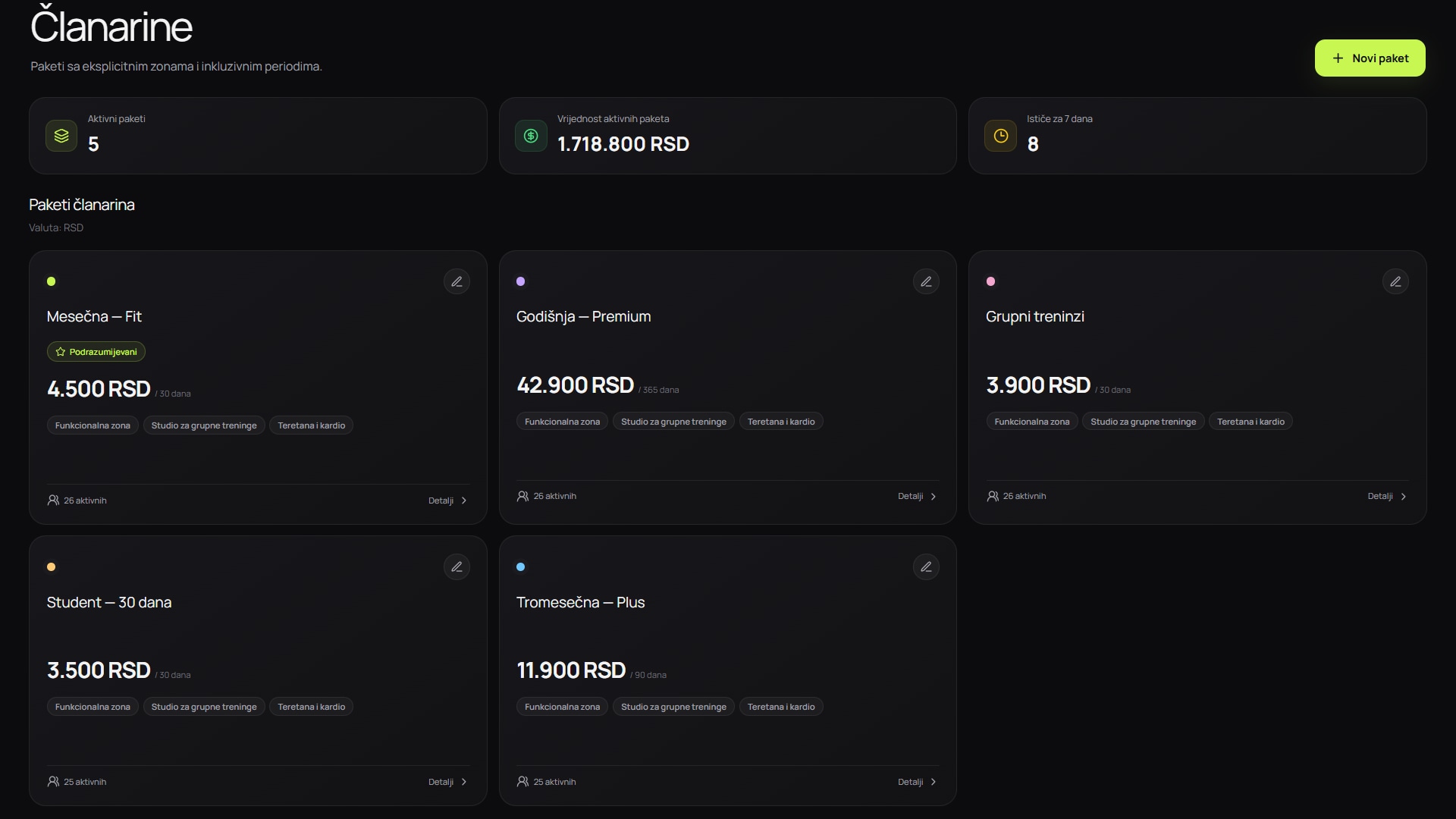
Screenshots show the Serbian version of the app.
When Excel can be enough
A simple spreadsheet can be a reasonable starting point for a small member base, one record-keeper and a limited number of plans.
Its advantages are familiarity and a quick start. Limits appear when accuracy depends on manual entry, copied formulas and agreements about who may change which column.
When dedicated software makes more sense
Software becomes more useful when reception works in shifts, members use different plans and entries and payments need to connect to the same profile.
- several employees need simultaneous access to current data
- membership status is checked on every entry
- you need change history, roles and access controls
- the owner wants reports without manually merging spreadsheets
| Task | Excel records | InoGym |
|---|---|---|
| Finding a member | Searching spreadsheet rows | Member profile and linked membership |
| Checking membership | Manual plan and date checks | Membership status on the member profile |
| Recording entry | A separate manual record | QR check-in linked to the member |
| Switching | The existing spreadsheet remains the source | Free import through the template or with our team |
The key question is your process
Before deciding, write down who enters members, who records payments, how entry is checked and which information the owner uses for decisions. If the same data is copied into several places, a dedicated system can remove much of that work.
A good transition starts with reviewing data, cleaning duplicates and setting clear rules for future entry. Keep your existing spreadsheets as a source during the process.
Preparing Excel data for migration
Save a copy of your existing records. Enter one member per row in the InoGym template, with full name, email and date of birth required. Complete missing information before importing or ask our team for help.
For a membership, enter the name of an active plan already in InoGym and its start date. Phone, joining date and note are optional. The template does not transfer full payment history; keep your old records for data you do not transfer.
Trial import and result checks
During the 14-day trial, import members from your spreadsheet for free. Upload the file in the dashboard, check the column mapping and validation results, then confirm the import of valid rows.
After importing, compare the data with your spreadsheet and open several member profiles to check contacts, plans and membership dates. Agree when to stop keeping parallel Excel records so changes do not end up in two places.
Organising the first day in your new system
Reception staff should know how to find a member, record a payment, correct an error and respond when entry is declined. Short instructions for common situations are more useful than a long general presentation.
During the first few days, track staff questions and inconsistent data. Enter corrections in the new system with a clear record rather than maintaining two active databases indefinitely.